• SONAR
  • [Resolved] Trouble with MIDI Devices
2016/04/11 18:13:43
Resort Records
Hi all,
 
I use two identical MIDI interfaces (MOTU MIDI Timepiece AV) and sometimes others too (e.g., NI Rig Kontrol 3) and find that Sonar occasionally loses or rearranges my MIDI Input and Output settings in Preferences > MIDI > Devices.  Sometimes, a device disappears.  Sometimes, perhaps after a restart, it comes back but has a new number assigned to it and all of the friendly port names are gone.  Other times, all of the ports on one interface or the other have simply been deselected.  Can anybody explain why this happens and how to prevent it?
 
Any assistance is greatly appreciated.
 
Edit:  This is not a Sonar problem but a Windows problem.  I've provided a workaround for this randomly recurring nuisance below.  Enjoy!
2016/04/11 18:19:40
John
If you can use your Timepiece for all your MIDI connections. I have a USB MIDI port that handles all my MIDI gear. I never have the problem you are describing.   
2016/04/11 19:32:47
WDI
Probably just need to make sure all hardware is started before starting Sonar.
2016/04/11 20:27:56
gustabo
Set it the way you want it, close Sonar and set ttsseq.ini and ctrlsurface.dat to read-only.
 
2016/04/11 22:06:33
tenfoot
I use several different interfaces and have encountered this many times in the past It is is a an issue with windows seeing your midi interfaces as a new device rather than using the driver already assigned to them. It usually happens when hardware is plugged into a different usb port to it's original installation but there can be other factors as well. Your hardware will often show up as the device name with a secondary number next to it. There are a couple of steps to avoiding this.
 
1. Always plug your midi interfaces into the same USB port.
 
2. If you are using multiple interfaces, you can back up the ttseq.ini file in sonar where all of the midi input and output settings are stored. It is located @ users/[your username]/AppData/Roaming/Cakewalk/Sonar Platinum{or your version of Sonar). I use several different interfaces, so I have a backup for each configuration. With your devices connected, and the midi outputs ordered as you like them (this can be done under preferences>midi using the 'moved check devices to the top' setting. Once the outputs are correct, navigate to; users/[your username]/AppData/Roaming/Cakewalk/Sonar Platinum. Make a backup copy of ttseq.ini, and create a shortcut to where the file came from. Do this for each different hardware setup you use. Now when you want to switch hardware, all you need do is copy the backed up file to its original location and all of your ports will show up exactly as they did previously.
 
If you open the ttseq.ini file in a text editor, it is also possible to reorder not only the midi outputs , but the order midi inputs show up in Sonar as well. This is not as crucial as the outputs, which as you know all too well can mess with your projects!
 
FWIW, there are three other files at the same location that contain Sonar configuration information: AUD.ini, ctrlsurface.dat, and INSTRMAP.INI. If you back these up with each configuration as well, all of your audio, midi, control surfaces and external synths can be restored very quickly in case of any changes.
2016/04/11 22:08:45
tenfoot
gustabo
Set it the way you want it, close Sonar and set ttsseq.ini and ctrlsurface.dat to read-only.


This is a good approach if you consistently use the same hardware setup, but the OP uses several different configurations. It also will not help if a new driver is assigned to the hardware, so consistent USB connection is important.
2016/04/12 18:19:36
Resort Records
Thanks, guys!  Getting into and straightening out that TTSEQ.INI file appears to have helped - thank you! - but it wasn't exactly straightforward:
 
The first time I peeked at the file, the DeviceCount parameter values didn't add up - that is, I had 37 lines (numbered 1 to 37) and DeviceCount values of 38.  When I launched Sonar, my (minimal) changes were discarded.  So, I made some changes in Sonar to see what would happen to the INI file.
 
On the next peek, "0=Microsoft GS Wavetable Synth" had been added to each Device Map section, but placed before the DeviceCount parameter rather than with the list of devices.  Weird.  It probably doesn't matter but I moved it anyways.  I also renamed and reorganized my aliases and, this time, the changes stuck.

Another problem I was able to fix in TTSEQ.INI:  Two ports on my secondary MTPAV had disappeared.  I restored those lines manually to [AliasOutput] and restored the MaxOutPort parameter value to 15 (the default).  I don't know why it was at 13 - I never touched it.
 
When I launched Sonar again, all of my devices and ports were alive and well.  Better still, should this happen again, I'll know where to look.  I'm also going to be less reckless with my USB plugging.  Hopefully, if I plan my port usage and stick with it, things will stay in place.  We'll see.
 
Thanks a million!
2016/04/12 18:33:45
Resort Records
I wonder if Gustabo and WDI are also onto something.  I don't always remember to power up my equipment racks before launching Sonar.  I mean, why charge up the whole studio if all you're doing is editing a Word document, right?  If this is indeed an issue, I can certainly plug my MIDI interfaces into an unswitched circuit, but I'm hoping Windows and Sonar are smart enough to keep those ports reserved when the devices aren't powered up.
 
Or, Bruce, I guess your solution #2 addresses this.  Sounds good - I might just implement your suggestion with a batch file to replace TTSEQ.INI, etc. with whichever hardware configuration I need.  Point and shoot.
 
Thanks again!
2016/04/13 15:26:01
tenfoot
Resort Records
I wonder if Gustabo and WDI are also onto something.  I don't always remember to power up my equipment racks before launching Sonar.  I mean, why charge up the whole studio if all you're doing is editing a Word document, right?  If this is indeed an issue, I can certainly plug my MIDI interfaces into an unswitched circuit, but I'm hoping Windows and Sonar are smart enough to keep those ports reserved when the devices aren't powered up.
 
Or, Bruce, I guess your solution #2 addresses this.  Sounds good - I might just implement your suggestion with a batch file to replace TTSEQ.INI, etc. with whichever hardware configuration I need.  Point and shoot.
 
Thanks again!


Glad you got it sorted David. You seem to have things well under control - a master of the ttseq!
 
Not powering up hardware every time you start your PC will not cause windows to reassign different drivers the next time you turn devices on as long as you stick with the same USB ports. Opening Sonar with hardware turned off can on occasion cause port reordering, but this is easily fixed now that you have your ttseq backup:)
2016/11/05 18:10:48
Resort Records
Well, I finally found a solution to this randomly recurring nuisance.
 
In the seven months since I first posted this question, my Windows 10 workstation rearranged my MIDI interfaces five times.  Five times!  No USB cables were moved.  No system changes.  Nothing.
 
Asking Windows to put your device back isn't an option, but I discovered a way to cleanse Windows' memory of the device so that it can be reinstalled, as if for the first time.  Consequently, if you have one MIDI interface, it will appear as device #1, and if you have three, they'll be #1, #2, and #3 (per your order of installation).  Best of all, this is achieved in just one click.  Here's how:
 
  1. Download and install the free Device Cleanup Tool and Device Cleanup Cmd from Uwe Sieber.
  2. Turn off your MIDI interfaces and use the Device Cleanup Tool to locate all relevant device entries.  If you're unsure, turn on your MIDI interfaces, refresh the Device Cleanup Tool display, and note which "non-present devices" disappear.  Repeat as necessary.  
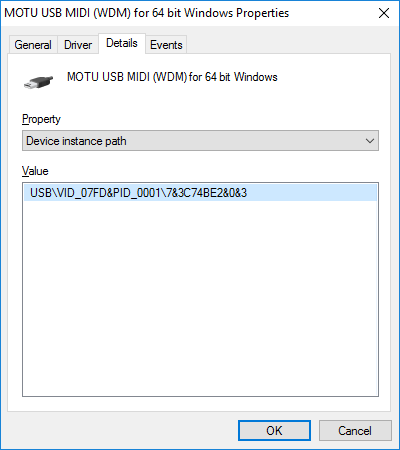
  3. Open the Properties dialog for each relevant "non-present device," choose the Details tab, and then locate the "Device instance path" property.  Note the commonalities in each entry.  You will need to produce pattern strings that match all of the relevant entries exclusively.
  4. Launch a command prompt with Admin privileges.
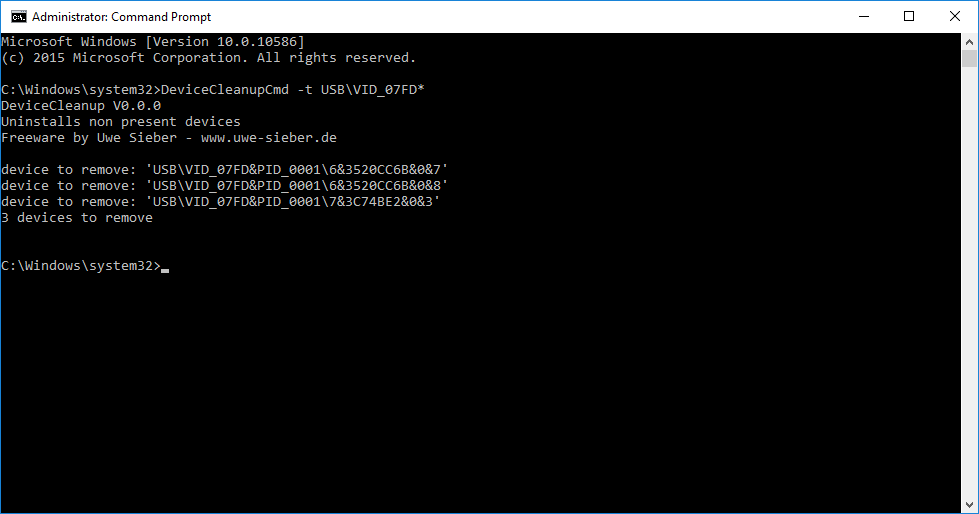
  5. Test your patterns by executing Devicecleanupcmd with the "-t" (test mode) option.  Consult the documentation and refine your patterns until a single command locates all of the relevant "non-present devices" with no false positives.
  6. Record the command (without the "-t" option) in a TXT file and save it to your desktop as CLEAN_MIDI_DEVICES.BAT, for example.
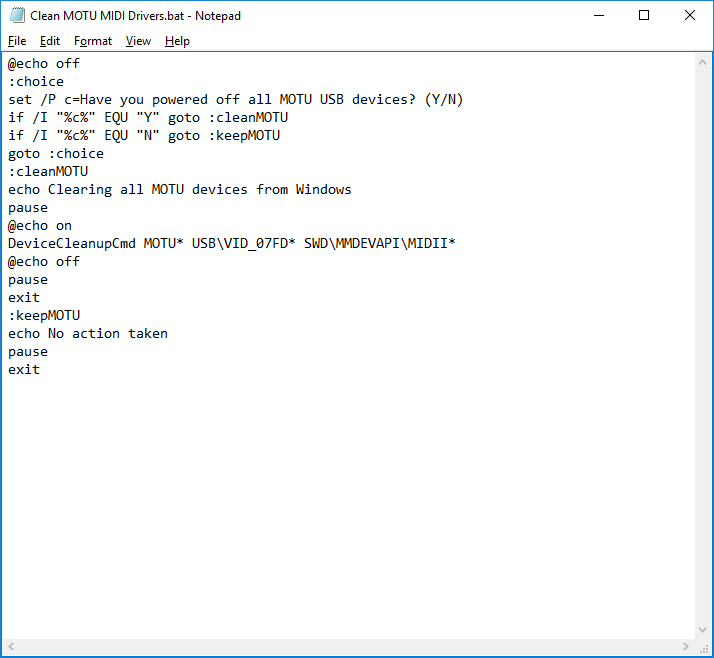
  7. Embellish your batch file as desired.  In my example, below, I've added prompts to verify that all MIDI interfaces are powered off.  [Otherwise, the process won't be successful.]  If you've got a lot of interfaces or are otherwise forgetful, you might also want to remind yourself in which exact order the devices should be re-powered up.
Now, any time Windows reorganizes your MIDI interface(s), simply shut them down, run the batch file (as Administrator), and then restore power to your MIDI interface(s) in the appropriate order.  Your driver software wasn't deleted, so Windows will automatically locate and install the necessary components, and things should be restored to a "Windows Clean Install" state.
 
Here are some supporting images:
 
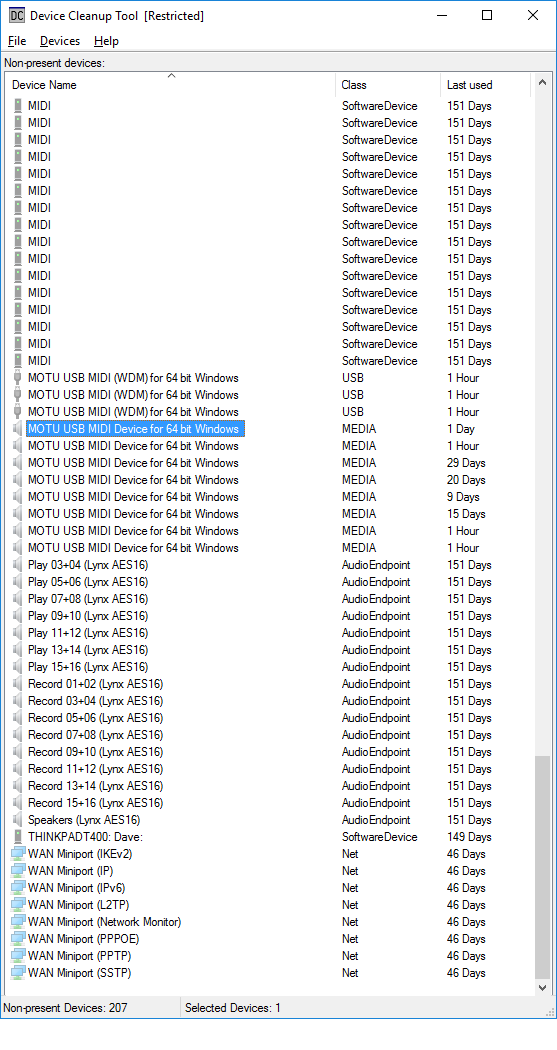
First, the Device Cleanup Tool.  In my case, all of the myriad "MIDI" and "MOTU" devices must go.
 

Here's one of the device instance paths I'll build a pattern for.  In this case, discovering that VID stands for Vendor ID, a Google search reveals that 07FD is indeed MOTU's assigned vendor ID, making it an ideal search pattern for at least some of the devices.
 

Here, I'm testing a pattern.  Per the docs, asterisks (*) are wildcards.


And here's my final batch file.  Note the three patterns in the DeviceCleanupCmd line and that the "-t" option has been removed.


Please be careful.  Though these tools are supposed to remove only "disconnected" devices - how much harm can that do? - I suppose it's still possible to remove something better left alone.  And if you live in my world, anything that can happen....  Well, caveat emptor.
 
I hope this is helpful.
© 2026 APG vNext Commercial Version 5.1

Use My Existing Forum Account

Use My Social Media Account