My Screensets (Long post warning!!)
I've been a huge advocate (Fanboi??

) of Screensets (from now on SS) since they appeared in X1 and some users have asked me to post some of mine up so here they are in all their glory. They are very much a work in progress, I'm still tweaking them but fairly happy with where I am with them now.
I really feel the power of SS is misunderstood by some and I hope that these examples will give an idea of how powerful they are for organising 'workflow'. If at the end of this you still think they are just layouts, then I'm never going to convince you otherwise. I could never do this with layouts though, perhaps I was missing something? I also think once users start to realise the power there'll be less calls to 'go global'.
A better way of saving and loading them individually definitely but I'm more convinced than ever that global would be a disaster. Imagine hiding all your audio tracks in every project just because you choose to do that in one or changing the snap to or zoom resolutions. If you want them in every project set them up how you want them and then save that as a template. If you want them in old projects open that template and import them. You've only got to do it once per project.
First thing I'll say is that if your screensets are slow to change, disable your floppy disk controller in your BIOS - yes it really makes a difference. Even on my underpowered system (by CWs minimum specs) mine change pretty much instantly.
NOTES I have my CV set to sync with my TV BTW.
The names in brackets are the names I have given them
The dark areas in the images are a result of me having two different sized monitors, not how they actually appear.
I hope the images are big enough.........
As I keep reciting the only thing so far that I have found limiting, aside from a couple of wishes I'll mention later, is my imagination. Anyway here they are with a brief explanation of my thinking behind each one. Enjoy...
SS 1 - (Standard) 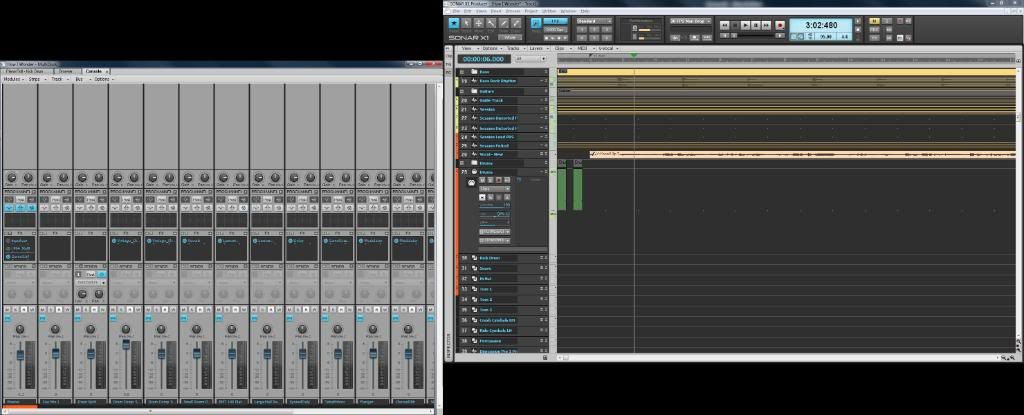
A boring one to start with - before all the exciting stuff starts. A general view I leave unlocked, so if I'm making changes here for whatever reason and then move to another screenset, when I return here it's as I left it and not back to its default state.
This is a TV in the right monitor, The left monitor has a maximised multidock (as do all my SS, unless otherwise stated) with the CV, Browser, and PRV in the left monitor. The last view opened, in this case the CV is the one that will default to the front when switching back to the SS no matter which TAB was in view when the screenset is locked. I have no idea whether that's by design or a bug, but it is consistent so I can live with that. remember switching tabs is simply a ctrl-shift-left/right arrow key press. Widgets set to all.
One thing I wish they would add to SS is an indicator that shows whether the current SS is locked or not. I have a key assigned to lock/unlock but it's not easy to tell what the current state is.
SS 2 - (Audio Record) 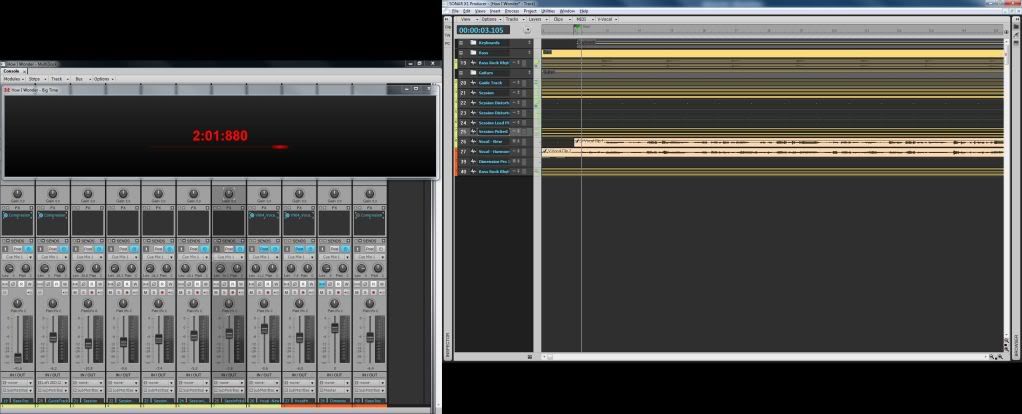
Now things start to get a little more interesting and once the floating window bug is sorted, it'll be even better.
As the name suggests I use this for audio recording. The right hand view again is TV but now with only the audio tracks showing, that's all I want to see here. (Hide others using the track manager).
The left hand view has a console view with tracks only and a floating big time window on top of that. For some reason my screen capture doesn' get it but it's the big time view stretched across the blank area of the console strips at the top of the console view. EDIT: Now fixed.) (To float a window and stop it auto-docking hold down the ctrl key as you move it)
I can see my meters and the big time as I'm recording. Remember I'm currently a one-man band bedroom, hobbyist, amateur or whatever you want to call me. I'm hoping to do more once/if ever I get the premises.
Only trouble is with this at the moment is the big time will be hidden when switching back to it. I'm hoping that this is a bug and be fixed in a future update. Press Alt-Shift-3 to bring it back to the front.
In this SS I have snap to set to measure but turned off. Widgets set to I/O. Edit filters all on clips.
SS 3 (MIDI record) 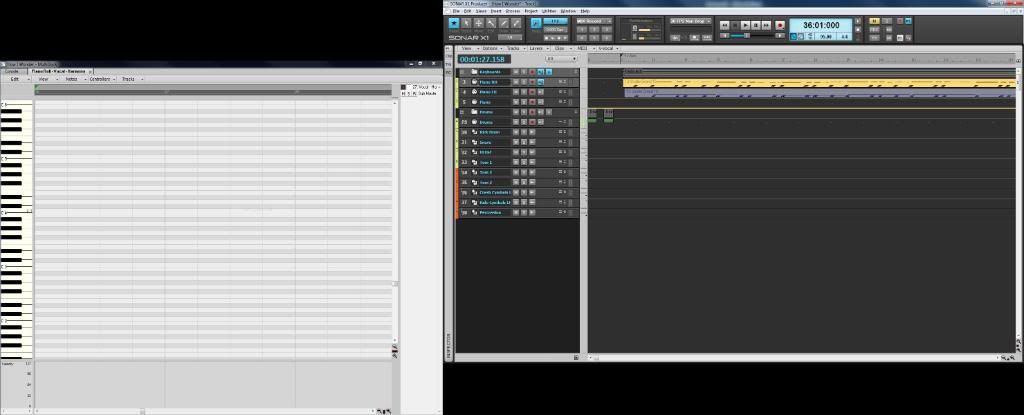
I use this for MIDI recording.
Similar to my Audio record SS except in this one only MIDI tracks are visible, the left hand monitor is PRV fairly well zoomed out but the CV is also docked in there so I can quickly access that if needed.
In this SS I have snap to set to measure but turned on. Widgets set to I/O. Edit filters set to clips.
SS 4 - (PRV 1) 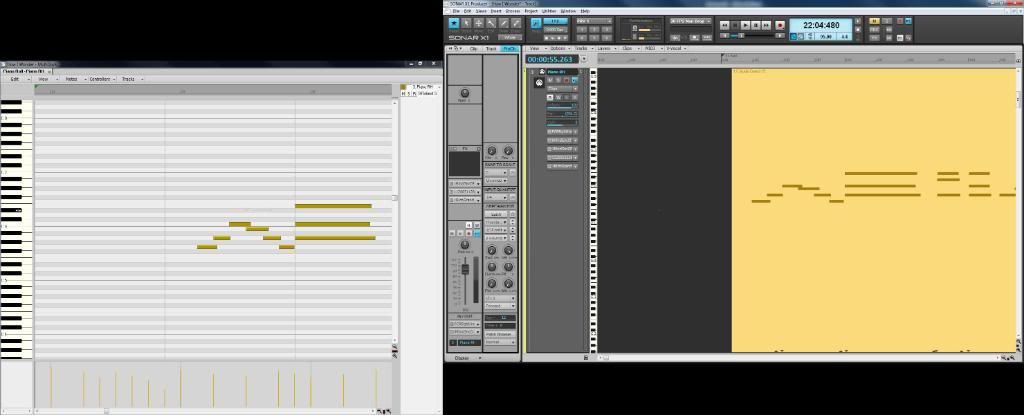
I use this for MIDI editing mainly in the PRV. Again only tracks visible are the MIDI tracks. I also have the inspector open on this view by default. Remember in all the SS that's only a keypress away anyway. Both views are fairly well zoomed in and I have the snap to at 1/16 and switched on.
To call up a track to edit in the PRV and the next view just double click the track. Double clicking a different track replaces the one in the PRV with it. This SS also highlights another bug. When switching back to this type of view with a MIDI track ready loaded the MIDI data in the PRV appears to have disappeared. Doubling clicking the track brings it back.
All track edit filters set to notes. Widgets on Mix
SS 5 - PRV 2 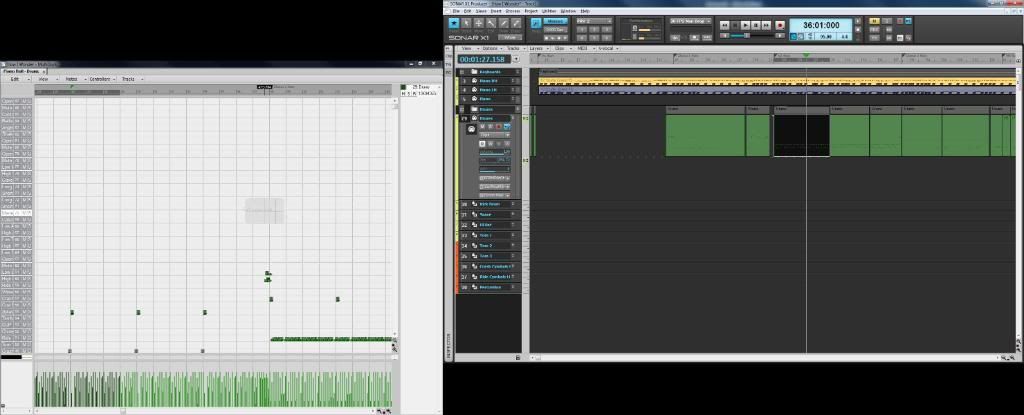
A copy of PRV 1 but both zooms are backed off and the snap to is now at measure. The inspector is off by default. I use this view for moving MIDI clips around and more clip based rather than note editing.
All track edit filters set to clips. Widgets on Mix
SS 6 - CV Tracks 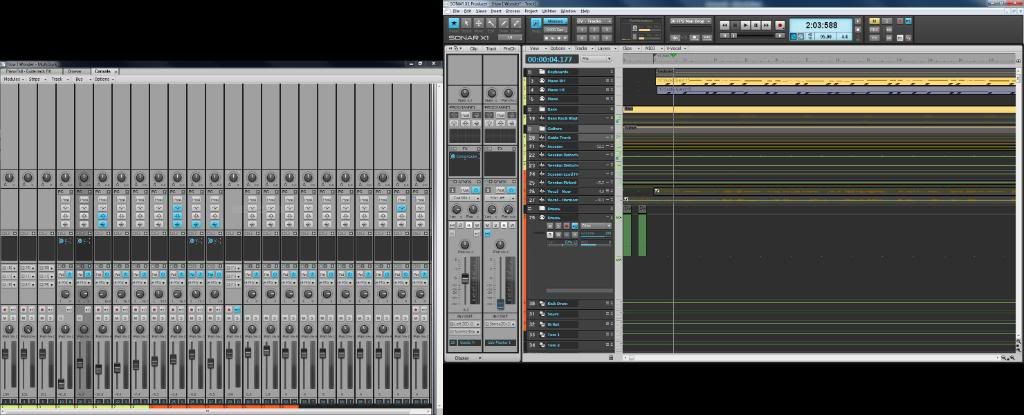
I have all tracks visible in this view. TV again in the right with a medium width track header , inspector visible, moderate zoom level, snap to at a measure. Left hand monitor has the CV with narrow tracks view (let's not start on that one

) but at least I can see real detail in the inspector.
Widgets on Mix. All edit filters on audio tracks set initially to volume automation (cos that's what I start working on first when I'm mixing)
SS 7 - Buss View 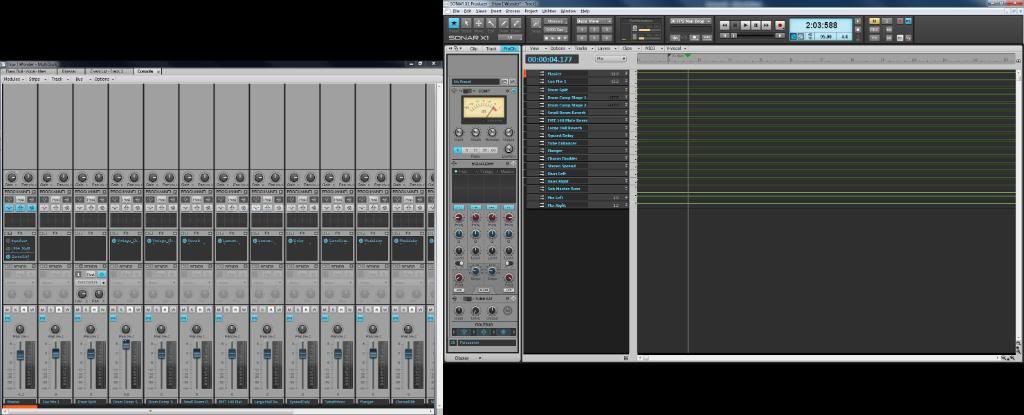
Similar layout to SS 6 but his time only busses visible. I have the strips in wide view in the CV, Inspector visible showing the prochannel. Widgets on mix and edit filter set to volume automation.
SS 8 - Synth Rack 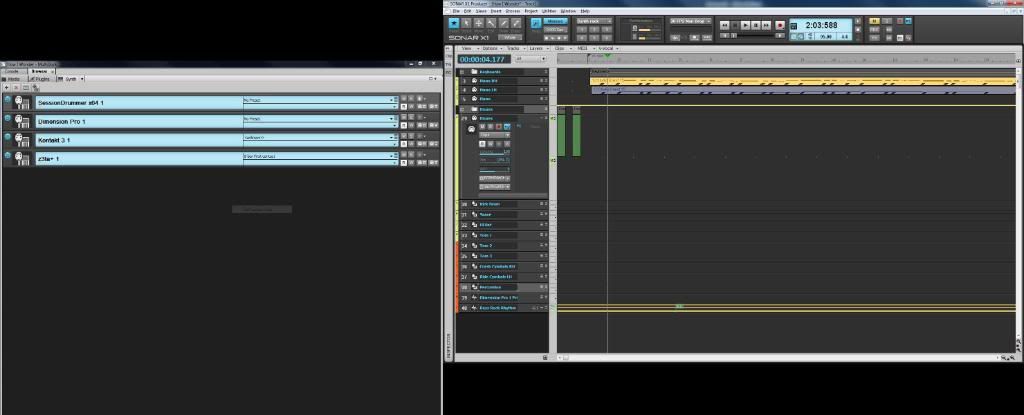
I don't use this SS much being more an audio and MIDI hardware kind of guy, but it's here if I do need it. Standard TV on the right, MIDI channels only. Browser with the synth tab at the front in the left. I also have the console docked there as well.
Widgets on all. Snap to at measure. Edit filters on Clips.
SS 9 - Step Sequencer 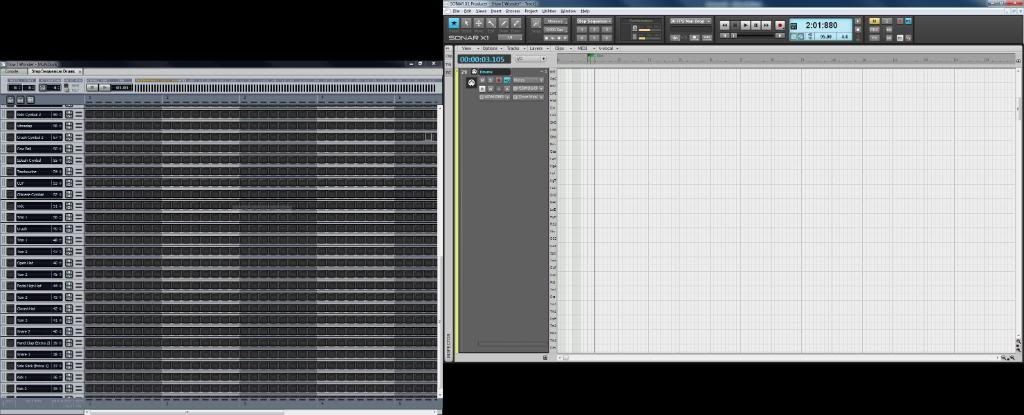
I use this one for entering my drum patterns (obviously). Only track visible is my Drum track in the TV. Step sequencer in the left plus the console also docked there if I need it. Widgets on I/O Snap to off. Edit filter to notes.
SS 10 - Comping 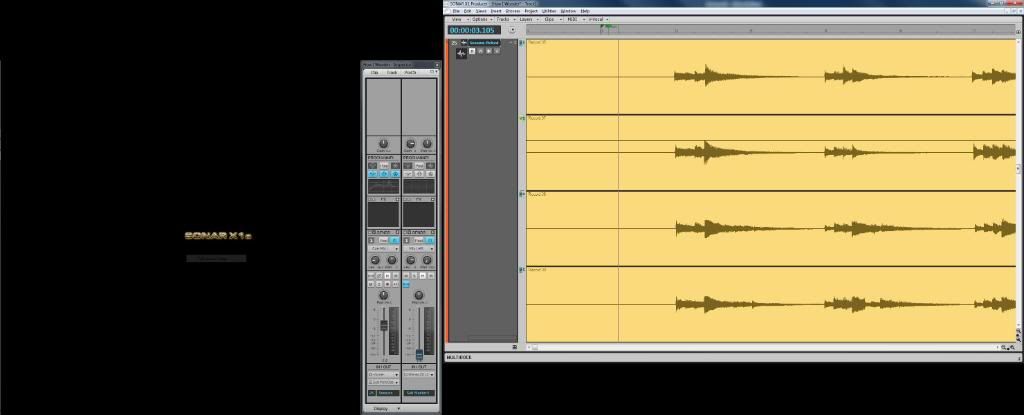
The only SS I don't use the multidock in. I have the track header just wide enough to read the track name. Inspector floating on the left hand monitor. Edit filter on clips. Widgets on one of my custom settings called comping which is basically every thing off except track state. I also close the Main Control Bar when I switch to this view. It would be nice to have SS remember which other windows such as Inspector, control bar etc are open and incorporate that as well. Feature request going in I think.
Now think about how quick having all those views preset ready to go instantly at the press of a button. If layouts could do that I really missed the boat with them.

Anyway, if you've got this far without falling asleep I hope these may have given you a few ideas. If you have any suggestions/questions/comments, please fire away. I'm no expert but if I can help with anything I will.
Screensets - I love 'em - How about another 10 Cake?
EDIT: Fixed image problem with SS2
post edited by FastBikerBoy - 2011/01/12 16:38:20