Hello Peeps

As some of you are aware I have been upgrading to Windows 8 in the last week or so. I went for a clean install because I wanted to install onto a larger SSD and I felt I needed to tidy up my Sonar install anyway and get rid of some of the baggage from installing some X1 demo stuff.
A clean install is quite a lengthy process. For me it was anyway, because I have many third party VTS's and VSTi's as well as various expansion libraries and they all needed installing,re-registering and then testing.
Anyway, I finally got to the stage yesterday afternoon where I could open an existing project. The first thing that I noticed was that the first CPU core was more than double the activity of the remaining seven. I must admit that I was a little disappointed with this because I was led to believe that Windows 8 managed core usage a bit better and was one of the reasons that I upgraded to W8. Here are some pics showing the CPU usage according to Windows Performance Monitor and Sonar's own CPU monitor:-
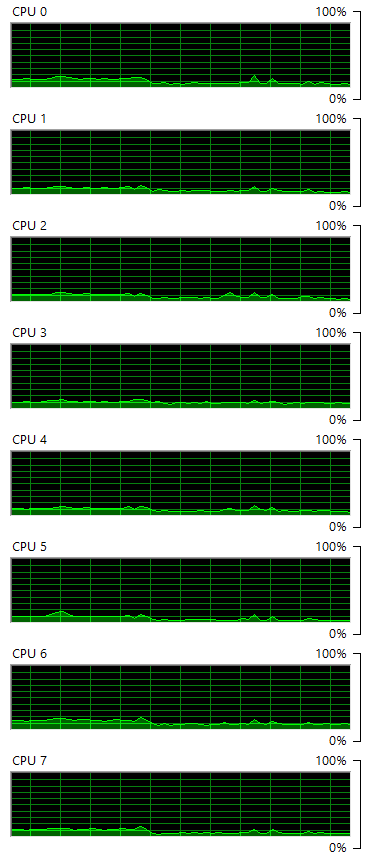
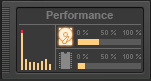
Both of the above screen shots were taken at the same time. As you can see, CPU 0 is running at around 10%.
I thought I'd have a go at fixing that. I should say, though, that I have already turned of "core parking" so I don't know whether that has anything to do with this issue. I should perhaps turn it back on, but I always though that turning it off was supposed to ensure that all cores are used and never parked. I ain't no expert though and could be a mile out with that assumption.
I had a look at the various tweaks I could make with my audio device settings and other preferences in Sonar, like changing the ThreadShedulingModel = 2, but nothing seemed to work really. I'm pretty crap at this sort of thing nowadays, and I change more than one thing at a time and then forget where I'm up to.
Even changing the latency settings for my QUAD-CAPTURE didn't really help. I even tried shutting down various bits and pieces in my Windows Startup just in case it was something there, although when I looked at the CPU usage, they were hardly taxing the CPU's at all. I then had a look at my graphics card settings and made sure that everything was set to use the NVIDIA device. Still no real help.
In one particular project I would always get audio dropout at exactly the same place. I could have tried freezing some synths and effects but I didn't want to do that. This did not happen when I was using Sonar on Windows 7, and the reason I spent loads of dosh on my current DAW was so that I didn't have to keep freezing and thawing my synths.
Then, the last thing I tried was changing my power settings. What a plonker... Once I set the power for High Performance I stopped getting the audio dropouts. At the place I was getting the dropout CPU 0 still peaks quite high but not so high as to stop the audio.
So, there you go... I suppose I should make notes of what I do and there is no doubt that I went through the same process with Windows 7 but I can't remember, as usual. My brain is getting a bit addled as I head towards my dotage........