• SONAR
  • NVIDIA driving me nuts! Help needed (p.3)
2012/11/22 01:22:23
Rob[at]Sound-Rehab
StarTekh


FreeFly: you did install the x-2 patch >?


yes
2012/11/22 01:45:22
Freddie H
I seem to have no problems with my ASUS NVIDA GT 640 card.
Download the latest driver.
http://www.nvidia.com/Download/index.aspx?lang=en-us


In the Control panel do following settings.
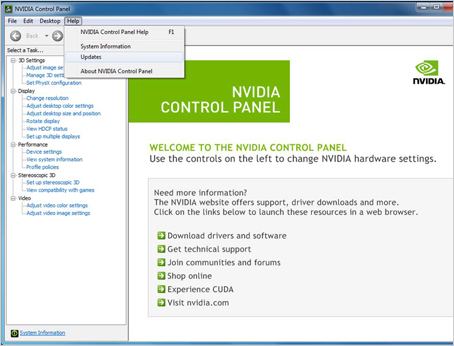

Manage 3D setting

Texture filtering - Quality = High quality
Power management mode = Prefer maximum performance
Ambient Occlusion = Performance
Antisotropic filtering = 16x or 8x
Antialiasing - FXAA = ON
Antialiasing - MODE = Override any application setting
Antialiasing - Setting = 16x or higher
Antialiasing - Transparency = 4x (supersampling) or higher
CUDA GPUs = All
Threaded Optimization = ON
Triple buffering = ON
Vertical Sync = ON
 
Configure Surround, PhysX
 
It is very important that you set PhysX Processor to your Graphic card ony! In your case  Geforce GT 630.
Not Auto select that are the default setting. Default setting make the card use the CPU too. 
 
 
Adjust desktop color settings
Change on every monitor that you use to---> = Use NVIDIA settings
 
 
Don't forget to do "Apply" when you are done.
2012/11/22 02:18:02
GIM Productions
hi you can disable the nvidia services in the control panel.this don't bring any video problems.
I always disable this services on my daw.
2012/11/22 02:30:38
LJB
I built an i7 2600 Intel machine last year, and my NVidia 8600 GT card started giving Blue Screens. Took it out and resorted to the onboard graphics, and the problem was gone.
2012/11/22 02:50:57
deswind
Had NVidia - now ATI.
Did not play well with Lynx drivers.   And on another computer created all sorts of problems, including continually blue screens.
Put ATI in both computers - all problems gone.
I assume there are some computers and configurations where NVidia is just fine.   But ATI has never been a problem for me.
Also, the posts about disabling the driver, when a NVidia card is installed - that has worked for me as well, but I like the features of the ATI cards and drivers. 
2012/11/22 12:39:21
Freddie H
deswind


Had NVidia - now ATI.
Did not play well with Lynx drivers.   And on another computer created all sorts of problems, including continually blue screens.
Put ATI in both computers - all problems gone.
I assume there are some computers and configurations where NVidia is just fine.   But ATI has never been a problem for me.
Also, the posts about disabling the driver, when a NVidia card is installed - that has worked for me as well, but I like the features of the ATI cards and drivers. 
Some say they got problem with ATI some say NVIDIA. End of the day I think it's "50 - 50".
Anyway I tried ATI too never like it, returned the card. I feel I get much clearer and more vivid colors with NVIDIA. ATI is kind of dull..
You have more settings on the NVIDIA controlpanel VS ATI's. Example "digital vibrance" don't even exist in ATI controlpanel.
If anyone ask me I recommend NVIDIA card. I recommend INTEL CPU, not AMD too. If you want the best go NVIDIA!
It just my two cents...
2012/11/22 12:49:09
Teds_Studio
Sad thing is....some programs work better with Nvidia and other work better with ATI.  When I built my machine last year, I built it mainly for doing video editing with Sony Vegas Pro (11 at the time, now 12)....but did all of my audio mixing in Vegas too.

Everything I have read on any of the video forums state that Vegas Pro works so much better with Nvidia...which I adhered to since I have a GTX560Ti.

Now that I have switched over to Sonar for audio work I have found a lot of the "glitches" that have been described.  Weird video stuff happening such as artifacts, etc.  I've also noticed that if my machine sits for any length of time idle....then I hit play....it pauses for a few seconds before playback actually starts.

I have to have a stable video editing machine so I intend on keeping my Nvidia.  If my problems don't get any worse than I have been experiencing so far....I will be fine.
2012/11/22 12:53:18
Freddie H
Teds_Studio


Sad thing is....some programs work better with Nvidia and other work better with ATI.  When I built my machine last year, I built it mainly for doing video editing with Sony Vegas Pro (11 at the time, now 12)....but did all of my audio mixing in Vegas too.

Everything I have read on any of the video forums state that Vegas Pro works so much better with Nvidia...which I adhered to since I have a GTX560Ti.

Now that I have switched over to Sonar for audio work I have found a lot of the "glitches" that have been described.  Weird video stuff happening such as artifacts, etc.  I've also noticed that if my machine sits for any length of time idle....then I hit play....it pauses for a few seconds before playback actually starts.

I have to have a stable video editing machine so I intend on keeping my Nvidia.  If my problems don't get any worse than I have been experiencing so far....I will be fine.


I have friends that use X1 and X2 and ATI and they have audio graphic glitches with Pro Channel and so on...I think your X2 is more stable with NVIDIA VS ATI card. There are so many things in the computer that can cause audio glitches not just the graphic card. Wrong system settings can also make the computer really perform bad. Some even think disable the AERO improve the audio CPU and the video performance, when it's the opposite. Set shoulder to background service is another myth. Should be set to program.
2012/11/22 13:17:36
Rob[at]Sound-Rehab
GIM Productions

hi you can disable the nvidia services in the control panel.this don't bring any video problems.
I always disable this services on my daw.
Tried that. No improvement. 
 
Freddie H


I seem to have no problems with my ASUS NVIDA GT 640 card.
Download the latest driver.
http://www.nvidia.com/Download/index.aspx?lang=en-us


In the Control panel do following settings. 


Manage 3D setting

Texture filtering - Quality = High quality
Power management mode = Prefer maximum performance
Ambient Occlusion = Performance
Antisotropic filtering = 16x or 8x
Antialiasing - FXAA = ON
Antialiasing - MODE = Override any application setting
Antialiasing - Setting = 16x or higher
Antialiasing - Transparency = 4x (supersampling) or higher
CUDA GPUs = All
Threaded Optimization = ON
Triple buffering = ON
Vertical Sync = ON
 
Configure Surround, PhysX
 
It is very important that you set PhysX Processor to your Graphic card ony! In your case  Geforce GT 630.
Not Auto select that are the default setting. Default setting make the card use the CPU too. 
 
 
Adjust desktop color settings
Change on every monitor that you use to---> = Use NVIDIA settings
 
 
Don't forget to do "Apply" when you are done.
Thanks Freddie for taking the time and giving such detailed instructions. Unfortunately that didn't solve it, either.

2012/11/22 13:18:45
hockeyjx
Also, I've found the best thing is to download the driver package and unzip. Then browse in device manager to it.... then it just installs the files it needs, not the superfluous application.

I do this for most hardware and find it to be better.
© 2026 APG vNext Commercial Version 5.1

Use My Existing Forum Account

Use My Social Media Account